PNG to BMP
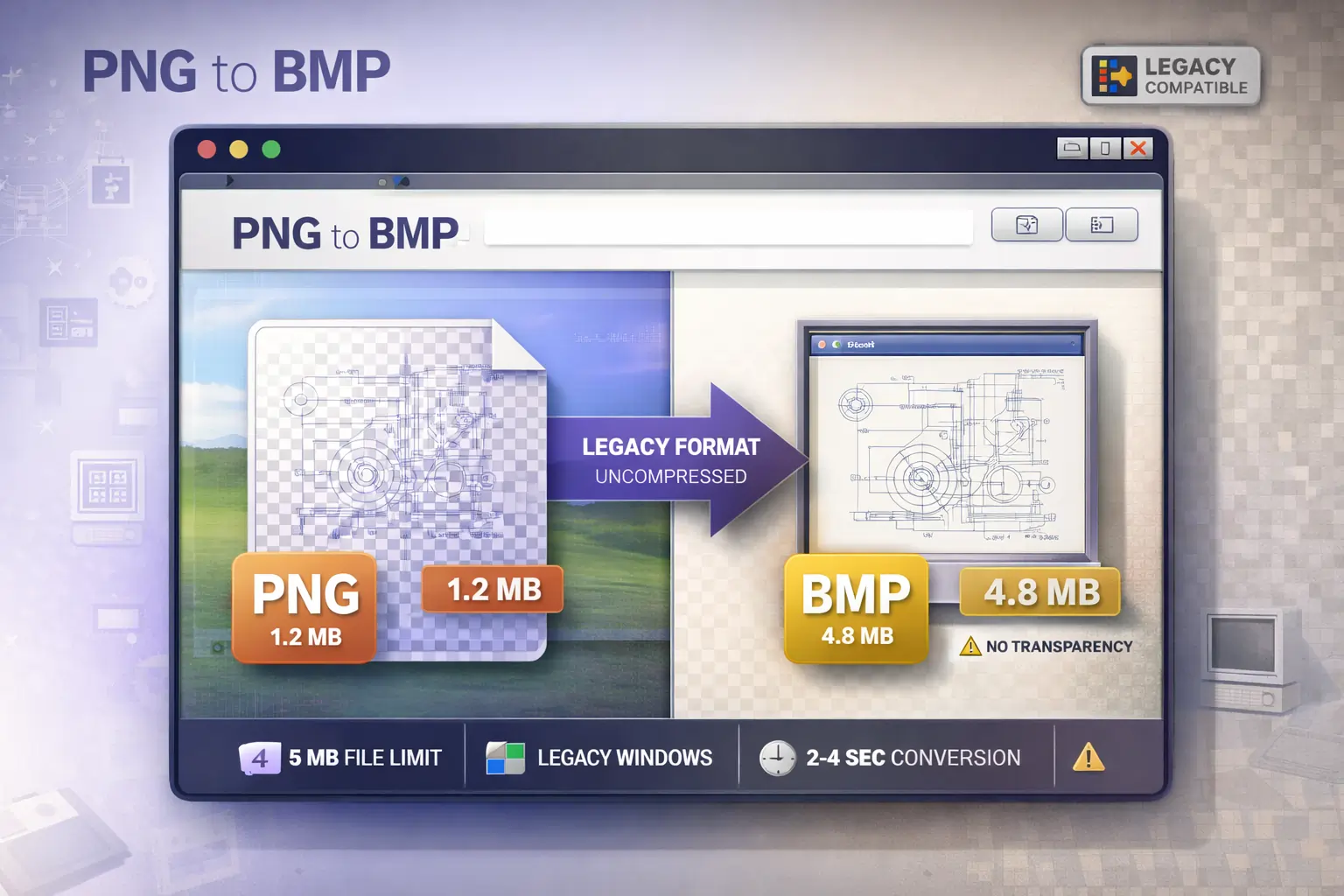
Convert PNG to uncompressed BMP format for Windows legacy applications. Support files up to 5 MB. Perfect quality in 2-4 seconds. 100% free, no signup.


PNG to BMP Converter – Convert PNG to BMP Online Free
By Chandu | Updated on January 2026 | Free Image Conversion Tool
Need a reliable PNG to BMP converter online for legacy Windows software or professional printing? Our free browser-based tool converts PNG images to uncompressed BMP format while maintaining perfect image quality. Supporting files up to 5 MB, the converter works entirely in your browser with complete privacy through client-side processing.
BMP (Bitmap) is Microsoft's native Windows image format widely used in legacy software, CAD applications, medical imaging equipment, and professional printing workflows. While modern web formats like WebP and PNG are superior for online use, BMP remains essential for older Windows programs, industrial applications, and specific printing requirements where uncompressed formats are mandatory.
Our tool converts PNG to BMP in just 2-4 seconds using advanced browser technology. Choose between local file upload or remote URL input for maximum flexibility. The converter features reCAPTCHA security, unlimited conversions, and works seamlessly on desktop, mobile, and tablet devices without any software installation required.
⚠️ Important Notice: BMP format does NOT support transparency. Transparent areas in your PNG will be replaced with a solid background color (white by default). BMP files are also 3-5x LARGER than PNG due to zero compression. Use BMP only if specifically required by legacy software or professional printing workflows.
Whether you're a Windows developer maintaining legacy applications, a printing professional requiring uncompressed formats, or a CAD user needing bitmap compatibility, this PNG to BMP converter online delivers accurate results every time.
Why Choose Our PNG to BMP Converter?
- ✅ 5 MB File Size Support – Generous upload limit accommodates high-resolution images and large graphics required by professional workflows.
- ✅ Uncompressed BMP Output – Generates standard 24-bit RGB bitmap files compatible with all Windows software and legacy applications.
- ✅ Perfect Quality Preservation – Pixel-by-pixel conversion maintains 100% color accuracy and image fidelity without any quality loss.
- ✅ 100% Free Forever – No hidden costs, premium tiers, subscription fees, or trial periods. Unlimited conversions with no restrictions.
- ✅ No Signup Required – Start converting immediately without creating accounts, providing emails, or going through verification processes.
- ✅ Fast 2-4 Second Processing – Quick conversion using efficient browser-based technology. BMP encoding is faster than compressed formats.
- ✅ Client-Side Processing – All conversion happens in your browser. Files never uploaded to servers, ensuring complete privacy and security.
- ✅ Dual Upload Methods – Choose between browsing local files from your computer or pasting remote image URLs for workflow flexibility.
- ✅ Windows Native Format – Generates device-independent bitmap files with maximum compatibility across all Windows versions and legacy software.
- ✅ Transparency Handling – Converts transparent PNG areas to solid background color (configurable), preventing unexpected results in BMP output.
- ✅ Legacy Software Compatible – Perfect for old Windows programs, CAD software, medical imaging equipment, and industrial applications requiring BMP.
- ✅ Professional Printing Ready – Uncompressed format suitable for high-quality commercial printing and archival purposes.
PNG vs BMP Format Comparison
| Feature | PNG | BMP | Winner |
|---|---|---|---|
| File Size (1 MB PNG) | 1 MB | 3-5 MB | PNG (5x Smaller) |
| Transparency Support | ✅ Full Alpha | ❌ Not Supported | PNG Winner |
| Compression Type | Lossless | None (Uncompressed) | PNG Efficient |
| Image Quality | Excellent | Excellent | Both Equal |
| Web Use | Perfect | Not Recommended | PNG Winner |
| Windows Compatibility | ✅ Modern | ✅ Native/Legacy | BMP (Legacy) |
| Loading Speed | Fast | Very Slow | PNG Winner |
| Storage Efficiency | High | Very Low | PNG Winner |
| Print Quality | Excellent | Excellent | Both Equal |
| Best Use Case | Web, Mobile, Modern Apps | Legacy Software, CAD | Depends on Need |
📑 Table of Contents
- 📌 What is PNG to BMP Converter?
- 📌 Why Convert PNG to BMP Format?
- 📌 Understanding BMP Transparency Limitations
- 📌 How to Convert PNG to BMP (5 Steps)
- 📌 When to Use BMP (and When Not To)
- 📌 Quality Preservation in BMP Format
- 📌 Real-World Use Cases
- 📌 Common Issues & Solutions
- 📌 Frequently Asked Questions
- 📌 Related Image Tools
What is a PNG to BMP Converter?
A PNG to BMP converter is an online tool that transforms PNG (Portable Network Graphics) files into BMP (Bitmap) format, also known as Device Independent Bitmap (DIB). This conversion creates uncompressed raster images compatible with legacy Windows software, CAD applications, and professional printing workflows that specifically require bitmap format files.
BMP is Microsoft's native Windows image format developed in the 1980s for storing pixel-by-pixel graphics data without compression. Unlike modern formats (PNG, WebP, JPEG), BMP stores every pixel's color information individually, resulting in larger file sizes but ensuring maximum compatibility with older Windows programs and industrial equipment that predates compressed image format support.
Our browser-based converter eliminates software downloads or installations. The tool uses client-side processing technology, meaning your PNG files convert entirely within your web browser without being uploaded to external servers. This approach ensures complete privacy and security for confidential technical drawings, medical images, or proprietary graphics.
The conversion benefits Windows developers maintaining legacy applications, CAD professionals using older AutoCAD versions, printing technicians requiring uncompressed formats, and industrial engineers working with equipment that only accepts bitmap images. With support for files up to 5 MB, the tool accommodates most technical graphics, engineering drawings, and professional photographs requiring BMP format output.
Why Convert PNG to BMP Format?
For Legacy Software Compatibility
Many older Windows programs developed before 2000 only recognize BMP format due to its native Windows support. Legacy CAD software like AutoCAD versions prior to 2010, older versions of CorelDRAW, early Paint Shop Pro releases, and countless industrial control systems require bitmap files because compressed formats (PNG, JPEG) didn't exist or weren't widely supported when these programs were developed.
Converting PNG to BMP ensures your images work in these legacy environments without compatibility errors. Medical imaging equipment manufactured before 2010, manufacturing quality control systems, barcode generation software, and Windows 95/98/XP-era applications frequently mandate BMP format. While modern PNG offers superior features, BMP remains essential for maintaining backward compatibility with decades-old yet still-operational industrial systems.
For Professional Printing Workflows
Commercial printing shops and professional publishing houses sometimes request uncompressed BMP files for high-stakes print jobs. The bitmap format's lack of compression eliminates any possibility of compression artifacts, ensuring pixel-perfect reproduction on printed materials. This matters for technical documentation, engineering blueprints, medical textbooks, and archival publications where absolute accuracy is mandatory.
BMP's device-independent structure guarantees consistent color reproduction across different printing equipment without color profile complications. Large-format printing, billboard production, and professional photo printing workflows occasionally specify BMP to avoid any quality concerns associated with lossy compression. The format excels in scenarios where storage space is irrelevant but print quality perfection is non-negotiable.
For Windows Development Projects
Windows desktop application development sometimes requires BMP format for application icons, splash screens, toolbar graphics, and embedded resources. Older development frameworks like Visual Basic 6, Delphi, and early .NET versions had better BMP support than modern formats. Legacy Windows screensaver development, desktop wallpaper creation for corporate environments, and Windows shell extension programming often mandate bitmap files.
System administrators deploying custom Windows images for corporate networks may need BMP files for logon backgrounds, boot screens, and default wallpapers compatible with Group Policy settings. Converting PNG to BMP ensures your graphics work across all Windows versions from Windows XP through Windows 11, providing maximum deployment flexibility for enterprise IT environments.
For Industrial and Scientific Applications
Scientific instrumentation, medical diagnostic equipment, manufacturing quality control systems, and laboratory analysis tools frequently output or require BMP format. Microscopy software, X-ray imaging systems, industrial inspection cameras, and material testing equipment often use bitmap files as their native format because the simple, uncompressed structure is easy to process programmatically.
Converting PNG to BMP enables integration with these specialized systems. Research documentation, scientific publications, patent applications, and regulatory compliance submissions sometimes mandate uncompressed formats to prevent any data loss from compression algorithms. The format's straightforward pixel storage makes it ideal for automated image analysis, computer vision applications, and machine learning training datasets requiring consistent, predictable image data structure.
Understanding BMP Transparency Limitations
Why BMP Doesn't Support Transparency
The BMP format specification from the 1980s predates alpha channel transparency concepts. Standard 24-bit BMP files store only RGB color information (Red, Green, Blue channels) without any opacity data. While newer BMP variants technically support 32-bit storage that could include an alpha channel, this capability is rarely implemented consistently across software, making it unreliable for practical use.
Most legacy Windows programs that require BMP format also lack transparency support entirely, rendering any alpha channel data useless even if present. The format's original purpose—simple, device-independent bitmap storage for Windows—didn't anticipate transparency needs common in modern graphics work. This fundamental limitation means converting transparent PNG images to BMP always requires choosing a solid background color replacement.
What Happens to Transparent Areas
When you convert PNG to BMP, all transparent pixels must be replaced with opaque color values. By default, most converters (including ours) replace transparency with white (#FFFFFF), creating a white background where transparency existed. Some converters offer black or custom color options, allowing you to choose the background color that best suits your destination use case.
Semi-transparent pixels (partial opacity) also convert to fully opaque colors, with the converter calculating the composite color as if the transparent pixel were displayed over the chosen background. A semi-transparent red pixel (50% opacity) over white background becomes a pink pixel in the BMP output. This conversion is irreversible—you cannot recover the original transparency after converting to BMP format.
Best Practices for Transparency Handling
Before converting transparent PNG images to BMP, consider your final use case carefully. If the BMP will be displayed or printed on white backgrounds, choose white transparency replacement. For images destined for dark interfaces or black printing backgrounds, select black replacement to prevent white halos around your graphics. Preview the result after conversion to verify the chosen background color produces acceptable visual results.
If transparency is essential for your workflow, consider alternative formats instead of BMP. Our PNG to WebP converter maintains perfect transparency while reducing file sizes by 26%. For legacy software compatibility, check if the program supports PNG format—most software updated after 2005 handles PNG transparency correctly, eliminating the need for BMP conversion entirely.
How to Convert PNG to BMP Online (5 Easy Steps)
Step 1: Open the PNG to BMP Converter Tool
Navigate to the PNG to BMP Converter tool at the top of this page. The interface loads instantly in your web browser without requiring any software downloads, installations, plugins, or browser extensions. No account creation or email signup is necessary—you can start converting PNG to BMP immediately upon page load.
The tool works seamlessly on all modern browsers including Chrome, Firefox, Safari, and Edge across Windows, Mac, Linux, ChromeOS operating systems. The responsive design adapts perfectly to any device from desktop computers to smartphones and tablets, ensuring optimal usability regardless of how you access the converter.
Step 2: Choose Your Upload Method (2 Options)
The converter offers two flexible upload methods to accommodate different workflows. Option A: Browse Local Files – Click the "Browse..." button located in the dashed-border upload area to select PNG files from your computer, external hard drive, USB drive, or network location. A standard system file browser window opens, allowing you to navigate through folders and select your desired PNG image for conversion.
Option B: Use Remote URL – Click the prominent cyan "USE REMOTE URL" button to paste a direct image URL from any website, content delivery network, cloud storage service (Google Drive, Dropbox), or online file repository. This method is perfect for converting PNG images already hosted online without downloading them first to your device, streamlining workflows for web developers and remote teams.
⚠️ Important File Size Limit: Maximum upload file size is 5 MB. This limit accommodates most technical graphics, CAD drawings, and professional images. For files exceeding 5 MB, first use our image resizer tool to reduce dimensions while maintaining quality, or crop unnecessary areas from your image before conversion.
Step 3: Select Your PNG Image File
After clicking "Browse...", navigate through your computer's file system to locate the PNG image you want to convert to bitmap format. The file selector supports all PNG variants including standard PNG, PNG-8 (256-color indexed), PNG-24 (16.7 million colors true color), transparent PNG with alpha channel, interlaced PNG for progressive loading, and grayscale PNG formats.
Once you select a file, the interface updates immediately, replacing the "No file selected." text with your actual filename to confirm successful selection. The tool automatically validates that the file is indeed PNG format and under the 5 MB size limit. Color profile information and image dimensions are detected automatically to ensure accurate BMP output with correct color reproduction.
Step 4: Complete the reCAPTCHA Security Verification
Verify you're a human user by clicking the "I'm not a robot" reCAPTCHA checkbox located directly below the upload area. This security measure protects the free service from automated bot abuse, prevents server overload from malicious scripts, and ensures fast conversion speeds remain available for legitimate users. The verification process typically takes 2-3 seconds.
Occasionally, reCAPTCHA may ask you to solve a simple image recognition challenge such as selecting all images containing traffic lights, crosswalks, buses, or bicycles. This additional step only appears if the system cannot confidently verify you as human from the initial checkbox click. Links to reCAPTCHA's Privacy policy and Terms of service are displayed alongside the verification for complete transparency.
Step 5: Click 'Convert' and Download Your BMP File
With your PNG file selected and reCAPTCHA verification completed, click the prominent cyan "Convert" button positioned centrally below the security checkbox. The conversion process begins immediately using efficient browser-based technology. Your PNG image is processed entirely within your web browser through client-side processing—the file never gets uploaded to external servers, never stored in databases, and never leaves your device.
Processing takes approximately 2-4 seconds depending on file size and image complexity. BMP conversion is faster than compressed formats because no complex compression algorithms are required. Small files under 1 MB typically convert in under 2 seconds, while larger files approaching the 5 MB limit may take the full 4 seconds to process and encode into uncompressed bitmap format.
Upon completion, your browser automatically prompts a file download. The converted file retains your original filename but adds the .bmp extension (example: diagram.png becomes diagram.bmp). The BMP file maintains identical dimensions and 24-bit RGB color depth, ensuring 100% color accuracy. Note that the output file will be 3-5x larger than the input PNG due to BMP's uncompressed storage format. Your original PNG file remains completely unchanged on your device for archival or future editing purposes.
💡 Pro Tips for Best Results:
- Keep original PNG files as backup copies before deleting them
- For transparent PNGs, verify background color choice matches your use case
- Expect file size increase of 3-5x due to zero compression
- Convert files under 5 MB for optimal processing speed
- Test BMP output in target legacy software before bulk conversion
When to Use BMP (and When NOT To)
✅ Use BMP Format For:
1. Legacy Windows Software Requirements: Programs developed before 2000 that explicitly require BMP format and cannot read PNG, JPEG, or other modern formats. This includes older CAD software (AutoCAD pre-2010), vintage graphics programs (Paint Shop Pro 7 and earlier), Windows 95/98/XP-era applications, and industrial control software that hasn't been updated in decades.
2. Professional Printing Specifications: When commercial printing shops or publishers explicitly request uncompressed bitmap files for technical documentation, engineering blueprints, medical textbooks, or archival publications. Some large-format printing equipment and billboard production workflows mandate BMP to ensure zero compression artifacts.
3. Industrial Equipment Compatibility: Medical imaging devices, manufacturing quality control systems, laboratory instrumentation, microscopy software, and scientific analysis tools that output or require BMP format because newer formats aren't supported by embedded firmware or legacy operating systems.
4. Windows Development Projects: Creating application icons, splash screens, or embedded resources for legacy Visual Basic, Delphi, or early .NET applications. Developing Windows screensavers, custom desktop wallpapers for corporate Group Policy deployment, or shell extensions requiring bitmap format.
❌ DON'T Use BMP Format For:
1. Website Images: BMP files are 3-5x larger than PNG and dramatically slow page loading times. Modern websites should use WebP (best compression), PNG (with transparency), or optimized JPEG (for photos). No major website uses BMP format due to file size and loading speed penalties.
2. Email Attachments: Large BMP files quickly exceed email attachment size limits and consume recipient storage. Use PNG or JPEG for email images unless the recipient specifically requires BMP format for legacy software compatibility.
3. Mobile Applications: Smartphones and tablets have limited storage and bandwidth. BMP's large file sizes waste space and increase data costs for users. Modern mobile apps universally use PNG, WebP, or JPEG for image assets.
4. Cloud Storage: Storing images long-term in uncompressed BMP format wastes expensive cloud storage space. Use PNG for lossless archival or TIFF for professional archival purposes. Both offer better compression while maintaining quality.
5. Images Requiring Transparency: Since BMP doesn't support transparency, use PNG instead for logos, icons, graphics overlays, and any image needing transparent backgrounds. Converting transparent PNG to BMP loses the transparency permanently.
Better Modern Alternatives
For web use, convert PNG to WebP for 26% smaller files with transparency support. For general purpose image storage with transparency, keep PNG format—it offers lossless compression with 3-5x better efficiency than BMP. For photographs without transparency needs, convert PNG to JPG for even greater file size reduction.
Only convert to BMP when absolutely necessary for legacy software compatibility or specific professional printing requirements. For all other scenarios, modern image formats provide superior file sizes, features (transparency, compression options), and compatibility with current software and hardware.
Quality Preservation in BMP Format
Pixel-Perfect Conversion Accuracy
Converting PNG to BMP preserves 100% of your image quality because both formats support lossless storage. The conversion is mathematically identical—every pixel's RGB color values transfer directly from PNG to BMP without any modification, interpolation, or quality degradation. This pixel-by-pixel accuracy ensures technical drawings, engineering diagrams, and medical images maintain absolute precision required for professional applications.
BMP's uncompressed format stores each pixel independently without any compression algorithms that might introduce artifacts. Unlike JPEG conversion which applies lossy compression, PNG to BMP conversion is completely reversible from a quality perspective (though transparency is lost). The resulting BMP file contains exactly the same visual information as the original PNG, making it suitable for archival purposes and applications demanding perfect quality preservation.
Color Accuracy and Bit Depth
Standard BMP conversion produces 24-bit RGB files supporting 16.7 million colors (8 bits per channel: Red, Green, Blue). This color depth matches or exceeds most PNG images used in practical applications, ensuring color accuracy for photographs, graphics, and technical illustrations. The device-independent bitmap structure guarantees consistent color reproduction across different display hardware and printing equipment.
Color profiles embedded in PNG files are respected during conversion, maintaining accurate color representation for color-critical work like product photography, medical imaging, and graphic design. The converter handles both sRGB (standard web color space) and Adobe RGB color profiles correctly, ensuring professional results for printing workflows that require specific color space management.
File Size vs Quality Trade-offs
The significant file size increase when converting PNG to BMP (3-5x larger) does not provide any quality improvement—you're simply storing the same visual information in an uncompressed format. A 1 MB PNG becomes a 3-5 MB BMP with identical appearance. This size penalty exists because PNG's lossless compression efficiently stores redundant pixel data, while BMP stores every pixel's full color information regardless of repetition.
The quality remains perfect in both formats, so the larger BMP file size offers no visual advantage—it simply ensures compatibility with legacy software unable to decode PNG compression. For modern applications that support PNG, keeping the original PNG format provides identical quality with dramatically better storage efficiency and faster file transfer times.
Real-World Use Cases & Scenarios
CAD and Engineering Documentation
Engineering firm TechDesign maintains a library of 500 technical drawings originally created in AutoCAD 2008, which exports diagrams as PNG files. Their client requires BMP format for integration with legacy manufacturing equipment running Windows XP embedded systems that don't recognize modern image formats. The equipment control software explicitly checks for .bmp file extensions and rejects all other formats.
Results: Converting the 500 PNG drawings (averaging 800 KB each) to BMP format produced 3.2 MB bitmap files (4x size increase). While storage increased from 400 MB to 1.6 GB total, the BMP files integrated perfectly with the legacy manufacturing system. The pixel-perfect conversion maintained all technical drawing precision required for CNC machining operations, with zero quality loss despite the format change.
Medical Imaging Equipment Integration
Hospital radiology department needs to import patient scan images into a diagnostic workstation manufactured in 2005. The equipment's proprietary software only accepts BMP format for archival and analysis purposes. Modern scanning equipment outputs PNG files, creating a compatibility gap that prevents direct image import without format conversion.
Results: Converting 1,200 PNG medical images (1.2 MB average) to BMP produced 4.8 MB files each, increasing storage requirements from 1.44 GB to 5.76 GB. Despite the 4x size increase, the uncompressed BMP format met medical archival regulations requiring lossless storage. The diagnostic workstation successfully imported all converted images, maintaining the critical diagnostic quality necessary for accurate medical analysis.
Legacy Windows Application Development
Software company maintains a Visual Basic 6 application used by 5,000 corporate clients who cannot migrate to newer systems due to regulatory compliance requirements. The application requires BMP format for toolbar icons, splash screens, and embedded graphics because VB6's resource compiler has unreliable PNG support that causes runtime errors in some deployment environments.
Results: Converting 120 PNG interface elements (50-200 KB each) to BMP format produced 200-800 KB bitmap files. Total application size increased from 8 MB to 14 MB, but eliminated all PNG-related runtime errors. The BMP files loaded instantly in the legacy VB6 environment, providing stable graphics rendering across all client installations running Windows XP through Windows 10.
Professional Printing and Publishing
Scientific journal publisher receives 300 PNG figure images from researchers for a medical textbook. The commercial printing press requires uncompressed BMP files to ensure zero compression artifacts in the final printed publication, as even PNG's lossless compression occasionally causes unexpected color shifts on their specialized printing equipment calibrated for bitmap input.
Results: Converting 300 PNG scientific figures (600 KB average) to BMP produced 2.4 MB files each, increasing submission package from 180 MB to 720 MB. The printing press successfully processed all BMP files with perfect color accuracy, producing print quality that met medical publication standards. The uncompressed format eliminated any concerns about compression artifacts affecting fine details in microscopy images and diagnostic scans.
Industrial Quality Control Systems
Manufacturing facility uses automated vision inspection systems from 2002 to verify product dimensions. The inspection cameras output PNG images to modern computers, but the analysis software running on Windows 2000 workstations only processes BMP format. Upgrading the inspection system would cost $500,000, making format conversion the economical solution.
Results: Converting 10,000 daily PNG inspection images (400 KB average) to BMP produced 1.6 MB files each, requiring additional 12 GB daily storage. The facility implemented automatic conversion using our tool's workflow, maintaining compatibility with legacy inspection software while avoiding expensive equipment upgrades. Quality inspection accuracy remained perfect with zero measurement errors attributed to image format conversion.
Common Issues & How to Fix Them
Issue 1: File Size Exceeds 5 MB Limit
Problem: Error message displays: "File too large. Maximum upload file size: 5 MB." Your PNG image exceeds the supported size limit and cannot be uploaded for conversion.
Solutions: Use our image resizer tool to reduce dimensions before converting (most images don't need to exceed 2000x2000px for typical use). Crop unnecessary whitespace or margins to reduce file size. Note that the output BMP will be 3-5x larger than the input PNG, so ensure adequate storage space is available for the converted file.
Issue 2: Transparency Became Solid White Background
Problem: Your transparent PNG logo or graphic now has a white background in the BMP output, destroying the transparent effect you needed.
Solutions: This is expected behavior—BMP format does not support transparency. Transparent areas must convert to solid colors. If you need transparency, use PNG to WebP converter instead, which maintains perfect transparency with smaller file sizes. If BMP is mandatory, edit your PNG in image editing software to add the desired background color before conversion, giving you control over the final appearance.
Issue 3: BMP File Too Large for Email or Upload
Problem: The converted BMP file is 10-15 MB and exceeds email attachment limits (typically 25 MB) or website upload restrictions.
Solutions: Reduce the source PNG dimensions using our image resizer before converting to BMP. Alternatively, compress the BMP file into a ZIP archive, which typically achieves 60-70% size reduction while maintaining the BMP format inside. Consider whether the recipient truly needs BMP format—most modern software accepts PNG, which would be 3-5x smaller for the same quality.
Issue 4: Legacy Software Won't Open BMP File
Problem: The converted BMP file won't open in your target legacy software, showing errors like "Invalid file format" or "Unsupported bitmap type."
Solutions: Some very old software requires specific BMP variants (like 8-bit indexed color instead of 24-bit RGB). Try converting to a smaller color depth using desktop software like GIMP or Paint.NET. Verify the file extension is exactly ".bmp" (not ".BMP" or with hidden characters). Check that the legacy software's file size limits aren't exceeded—some programs from the 1990s have maximum file size restrictions of 1-2 MB.
Issue 5: Colors Look Different After Conversion
Problem: The BMP file displays slightly different colors compared to the original PNG, particularly noticeable in brand colors or color-critical applications.
Solutions: Color profile differences between PNG (often sRGB) and BMP (device-independent) can cause subtle shifts. Ensure your original PNG uses sRGB color space before conversion. Test the BMP file on the actual target device or software where it will be used—color appearance varies between displays. For print applications, request color profile specifications from your printer and adjust the source PNG accordingly before converting to BMP.
Frequently Asked Questions
Q1: How do I convert PNG to BMP online?
To convert PNG to BMP online, follow these steps: First, open our PNG to BMP Converter tool at the top of this page in any web browser. Second, click the "Browse..." button to select your PNG file from your computer (or click "USE REMOTE URL" to paste an image link). The tool supports files up to 5 MB. Third, complete the "I'm not a robot" reCAPTCHA verification for security purposes.
Fourth, click the cyan "Convert" button to begin processing. The conversion happens entirely in your browser using client-side processing in approximately 2-4 seconds. Your file never gets uploaded to servers, ensuring complete privacy. Upon completion, the BMP file automatically downloads with the .bmp extension added to your filename. The converted image maintains identical dimensions and color accuracy, though file size will be 3-5x larger due to BMP's uncompressed format. No software installation, account creation, or payment is required.
Q2: Does BMP support transparency like PNG?
No, standard BMP format does NOT support transparency. When you convert a transparent PNG to BMP, all transparent areas will be replaced with a solid background color—typically white by default. Semi-transparent pixels (partial opacity) also convert to fully opaque colors, with the converter calculating composite colors as if displayed over the chosen background. This transparency loss is permanent and irreversible once converted to BMP.
While newer 32-bit BMP variants technically could store alpha channel data, this capability is rarely implemented consistently across software, making it unreliable. Most legacy Windows programs that require BMP format also lack transparency support entirely. If you need transparency, keep your original PNG format or use our PNG to WebP converter which maintains perfect transparency with 26% smaller file sizes than PNG. Only convert to BMP when legacy software compatibility absolutely requires it and transparency is not essential.
Q3: Why is my BMP file so much larger than the PNG?
BMP files are 3-5x larger than PNG files because BMP format uses zero compression while PNG uses efficient lossless compression. BMP stores every single pixel's full RGB color information independently, even when large areas of your image contain identical or similar colors. A 1 MB PNG typically becomes a 3-5 MB BMP with identical visual quality—the size increase provides no quality improvement, just uncompressed storage.
PNG's compression intelligently stores repeated pixel data efficiently, like describing "2,000 white pixels" once instead of listing each white pixel individually. BMP cannot do this optimization—it writes out every pixel separately regardless of repetition. The size penalty is the trade-off for maximum compatibility with legacy software that cannot decode compressed formats. This is expected behavior and cannot be avoided. If file size matters and your target software supports PNG, use PNG instead of BMP for identical quality with dramatically better storage efficiency.
Q4: Is PNG or BMP better for printing?
For modern printing workflows, PNG is better than BMP due to smaller file sizes with identical quality. Both formats are lossless and maintain perfect print quality, so image quality is equal. PNG's compression reduces file transfer time and storage requirements without affecting printed output. Most professional printing equipment manufactured after 2005 handles PNG format perfectly, making BMP unnecessary for typical printing jobs.
However, BMP may be required in specific situations: legacy printing equipment or RIP software from before 2000 that only accepts bitmap files, commercial printing shops with established BMP-only workflows for regulatory reasons, or specialized industrial printing requiring guaranteed device-independent bitmap format. Always ask your printer which format they prefer—most will say PNG or TIFF over BMP. For highest-quality archival printing, TIFF format (with LZW compression) is actually superior to both PNG and BMP, offering better color management with efficient lossless compression.
Q5: Can I convert BMP back to PNG later?
Yes, you can convert BMP back to PNG format using our universal image converter tool. The reverse conversion is lossless—you'll recover the original image quality perfectly since both formats are lossless. Converting BMP to PNG typically reduces file size by 60-80%, making PNG the better format for long-term storage of the same quality image.
However, you CANNOT recover transparency if your original PNG had transparent areas. Once transparency is converted to solid colors in BMP format, that transparency information is permanently lost. The reverse BMP-to-PNG conversion will maintain the solid background that replaced the transparency. For this reason, always keep your original transparent PNG files as backups before converting to BMP, rather than relying on reverse conversion to recover transparency later.
Q6: What is the maximum file size I can convert?
Our PNG to BMP converter online supports files up to 5 MB in size, which accommodates most technical graphics, engineering drawings, and professional photographs. This limit handles PNG images up to approximately 2500x2500 pixels with full color, covering typical CAD drawings, medical images, and high-resolution graphics. To put this in perspective, a 5 MB PNG might be a 3000x2000px technical illustration or a 2000x2000px photograph.
If your PNG exceeds 5 MB, first use our image resizer tool to reduce dimensions to appropriate sizes for your use case—most legacy software doesn't need extremely high resolutions. You can also crop unnecessary areas to reduce file size before conversion. Remember that the output BMP will be 3-5x larger than the input PNG, so a 5 MB PNG will produce a 15-25 MB BMP file, requiring adequate storage space.
Q7: Why would I use BMP format in 2026?
BMP format is rarely used in modern applications but remains necessary for specific legacy scenarios. Valid reasons to convert PNG to BMP include: compatibility with Windows software developed before 2000 that cannot read modern formats, CAD applications from pre-2010 requiring bitmap input, medical diagnostic equipment with embedded software that only accepts BMP, manufacturing quality control systems running on legacy operating systems, and occasionally professional printing workflows with established BMP-only procedures.
Industrial equipment, scientific instrumentation, and specialized Windows development projects sometimes mandate BMP due to firmware limitations or regulatory requirements preventing software updates. However, for all modern use cases—websites, mobile apps, social media, email, cloud storage, or contemporary software—PNG, WebP, or JPEG are superior choices. Only use BMP when explicitly required by legacy systems that cannot be updated, not as a general-purpose image format for new projects in 2026.
Q8: Will converting PNG to BMP reduce quality?
No, converting PNG to BMP does NOT reduce image quality. Both formats are lossless, meaning zero quality degradation occurs during conversion. Every pixel's color information transfers exactly from PNG to BMP without modification. The conversion is pixel-perfect—a 100% accurate reproduction of the original image. Technical drawings, photographs, graphics, and text remain crisp and clear with identical visual appearance.
The ONLY loss during PNG-to-BMP conversion is transparency—transparent areas become solid colors. Color accuracy, sharpness, detail, and overall visual quality remain perfect. The larger BMP file size (3-5x bigger) doesn't represent higher quality, just uncompressed storage of the same quality image. If you later convert BMP back to PNG, you'll recover the exact same quality (minus any lost transparency). This makes PNG-to-BMP conversion safe for archival, printing, and legacy software workflows requiring format compatibility without quality concerns.
Q9: Is this PNG to BMP converter completely free?
Yes, our PNG to BMP converter is 100% free forever with absolutely no limitations or restrictions. There are no trial periods that expire, no premium tiers requiring payment, no watermarks placed on converted images, and no usage caps or daily limits. You can convert unlimited files without any throttling, quality reduction on "free" conversions, or forced upgrades to access full features. All functionality is completely free for everyone.
We don't require credit cards, payment information, account creation, or email addresses. The 5 MB file size limit and unlimited conversion capability are available to all users without payment. No ads are placed on your converted images, and download speeds aren't artificially limited. The tool remains free because we believe basic image format conversion should be universally accessible—whether you're an individual hobbyist, small business owner, or Fortune 500 company.
Q10: Does BMP work on Mac and Linux systems?
Yes, BMP files work on Mac and Linux systems, though the format is primarily associated with Windows. Modern versions of macOS (10.6+) and Linux distributions include built-in BMP support in their default image viewers and editors. Mac's Preview app opens BMP files without issues, and Linux image viewers like Eye of GNOME and gThumb handle bitmap format correctly.
However, BMP format originated on Windows and remains most relevant in Windows environments. If you're creating images specifically for Mac or Linux use, PNG format is more appropriate—it offers better compression, transparency support, and is the preferred format on non-Windows platforms. Only choose BMP for Mac/Linux if you're exchanging files with Windows legacy software or have specific compatibility requirements with older cross-platform applications that mandate bitmap format for historical reasons.
Related Free Image Tools by ChanduSEOTool
Format Conversion Tools
- 🔄 PNG to WebP Converter – Convert PNG to modern WebP format with 26% smaller file sizes and perfect transparency preservation. Better than BMP for web use.
- 🔄 PNG to JPG Converter – Convert PNG to JPG format when transparency isn't needed. Achieves 60-80% smaller file sizes than BMP for photographs.
- 🔄 WebP to PNG Converter – Reverse conversion from WebP to PNG format with transparency preservation for editing or compatibility needs.
- 🔄 JPG to PNG Converter – Transform JPG photos to PNG format for lossless quality and transparency support before BMP conversion.
- 🔄 JPG to WebP Converter – Convert JPG photographs to WebP for 25-35% smaller files. Modern alternative to BMP for image storage.
- 🔄 WebP to JPG Converter – Transform WebP images to universal JPG format for maximum compatibility across all platforms and devices.
- 🔄 Universal Image Converter – Multi-format converter supporting PNG, BMP, WebP, JPG, GIF, ICO conversions with batch capabilities.
- 🔄 PNG to ICO Converter – Convert PNG images to ICO format for website favicons and Windows application icons with transparency.
- 🔄 ICO Converter – Multi-format ICO converter for creating professional favicon files from PNG, JPG, BMP sources.
Image Optimization & Editing Tools
- 📐 Image Resizer – Resize PNG images to reduce file size before BMP conversion. Essential for staying under 5 MB limit with large images.
- ✂️ Image Cropper – Trim and crop images to remove unwanted areas and reduce file size before format conversion to BMP.
- 🔄 Rotate Image – Rotate PNG and BMP images 90, 180, or 270 degrees while preserving quality perfectly for orientation correction.
- 🔃 Flip Image – Mirror images horizontally or vertically for design layouts and creative effects before BMP conversion.
- 🗜️ Image to Base64 – Convert images to Base64 encoded strings for embedding directly in HTML, CSS, or JSON without external files.
- 🔓 Base64 to Image – Decode Base64 strings back to image files (PNG, JPG, WebP, BMP) for editing and standard use.
Start Converting PNG to BMP Today
Converting PNG to BMP remains essential for legacy Windows software compatibility, CAD applications, industrial equipment, and specialized printing workflows in 2026. Our PNG to BMP converter online makes this critical transformation effortless with generous 5 MB file size support, perfect quality preservation, and fast 2-4 second conversion through secure browser-based processing.
While BMP format has limitations (no transparency support, 3-5x larger file sizes), it remains indispensable for maintaining compatibility with decades-old yet still-operational industrial systems. Whether you're converting technical drawings, engineering diagrams, or professional graphics, expect accurate results with 100% quality preservation.
🚀 Ready to Convert Your PNG Files?
Fast, Free & Secure – Convert PNG to BMP in 2-4 Seconds
Perfect Quality • 5 MB Support • Legacy Compatible • Zero Compression
✅ No Signup • No Credit Card • No Watermarks • Unlimited Use Forever

Popular Tools
Recent Posts


